SŌL PRO · IPHONE SETUP
Your inbox, one tap from home.
Follow the pictures and arrows to install Sōl Pro, open it, and choose whether to receive notifications. You can read every step before signing in. Installation is free; no App Store download is needed.
Open dashboard to installInstall from the dashboard, not this guide. You can return to these directions in a separate tab. The dashboard address on this website is /dashboard/.
Steps 1–5 are instructional illustrations, not iPhone screenshots. Step 6 uses a browser screenshot of the current app Menu with a simulated signed-out account, not an iPhone capture. Steps 7–10 use real iPhone screenshots supplied on October 9, 2026. Screen layout and button placement vary by iOS version. Follow the named controls as well as the arrows.
-
Open the dashboard in Safari
On your iPhone, open Safari and enter the dashboard address below. If this link opened inside Mail, Messages or another app, copy the address and paste it into Safari. Stay on the same website address throughout setup.
Safari address barYour dashboard addressInstructional illustration · layout varies -
Choose Add to Home Screen
Scroll down the Share options and tap Add to Home Screen. If missing, scroll to Edit Actions and add it there. If the option is still absent, reopen the page in Safari.
Share options⊞ Add to Home ScreenInstructional illustration · layout varies -
Turn on Open as Web App, then Add
Keep Open as Web App on if your iOS version shows it. Tap Add to confirm. Older iOS versions may not show that switch. Use iOS/iPadOS 16.4 or later for notifications.
Add to Home ScreenAddOpen as Web App: ON
(if shown)Instructional illustration · layout varies -
Open the new Sol Pro icon
Return to your iPhone Home Screen and tap Sol Pro (or the name you chose). Opening the browser tab again is not the same as opening the installed app.
Home Screen Sol Pro
Instructional illustration · layout varies -
Sign in if asked
In the installed app, tap Menu → Sign in, then Continue with Google or Sign in with email. The first arrow shows Menu; the second shows Sign in inside the open Menu. Use the existing verified account that has access to your inbox. Installation and sign-in do not grant a new account permission. You may need to sign in again after installing.
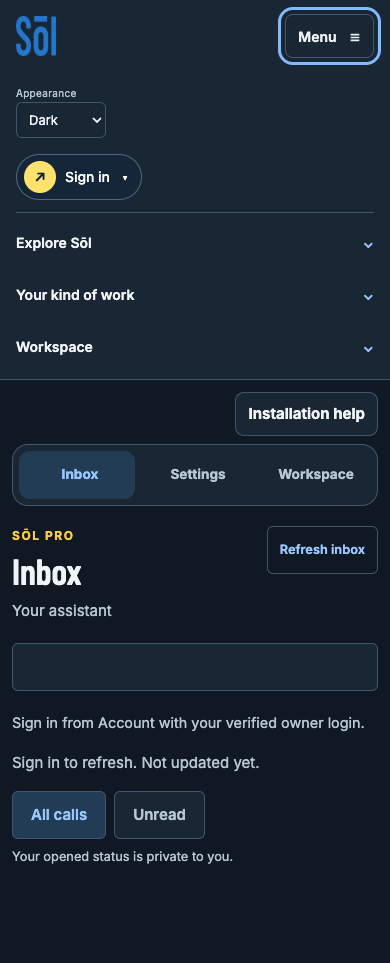
Browser screenshot of the current app Menu · simulated signed-out account, not an iPhone capture · arrows added as overlays -
Open Settings and choose Enable notifications
Tap Settings in the Sōl Pro navigation. After owner sign-in, find Enable notifications. Tap it only if you want alerts on this device. If setup is pending or the button is unavailable, read the status and troubleshooting below. Reviewer access does not include owner notification controls.
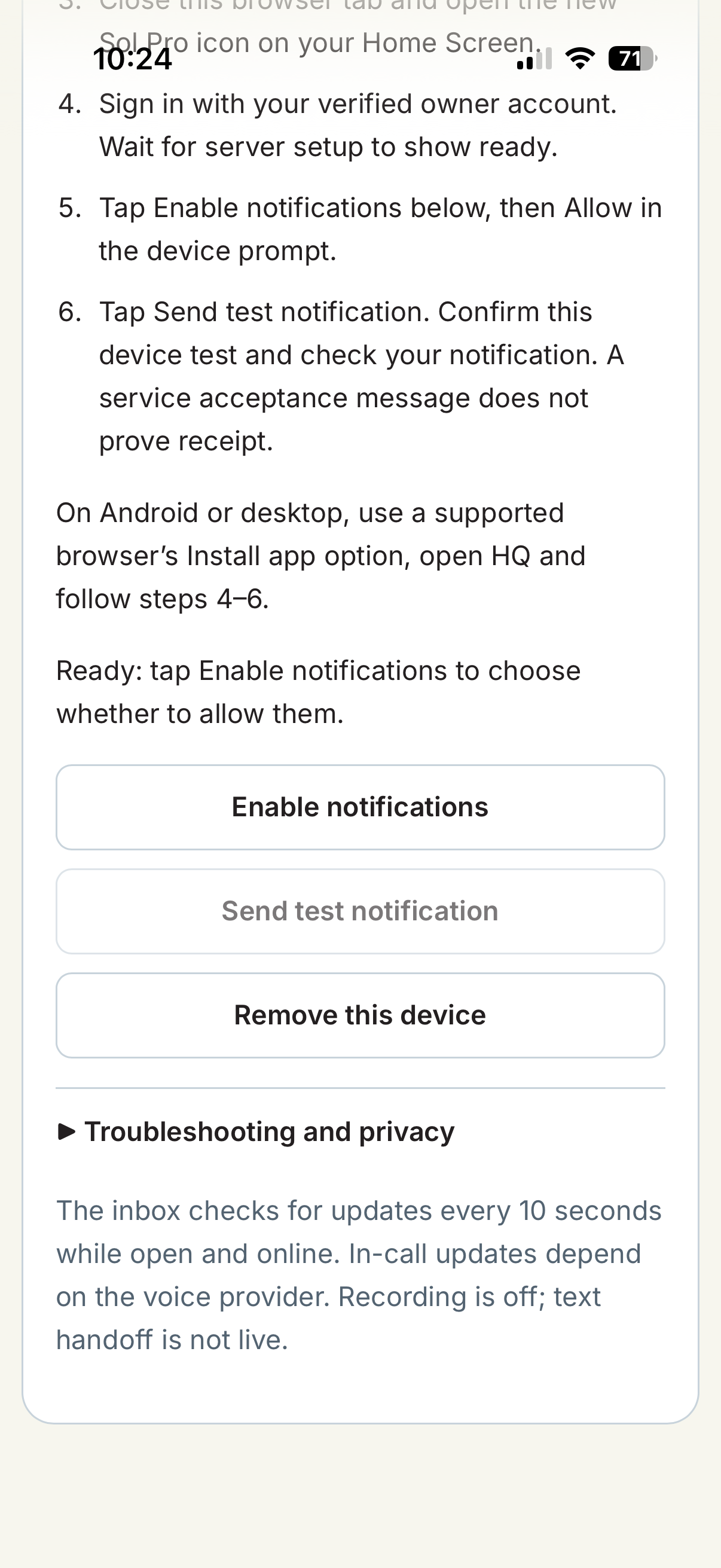
Real iPhone screenshot · October 9, 2026 · arrow added as an overlay -
Choose Allow in the iPhone prompt
To opt in, tap Allow. Choosing Don’t Allow leaves notifications off; you can still use your inbox. If you already made this choice, the prompt may not appear again.
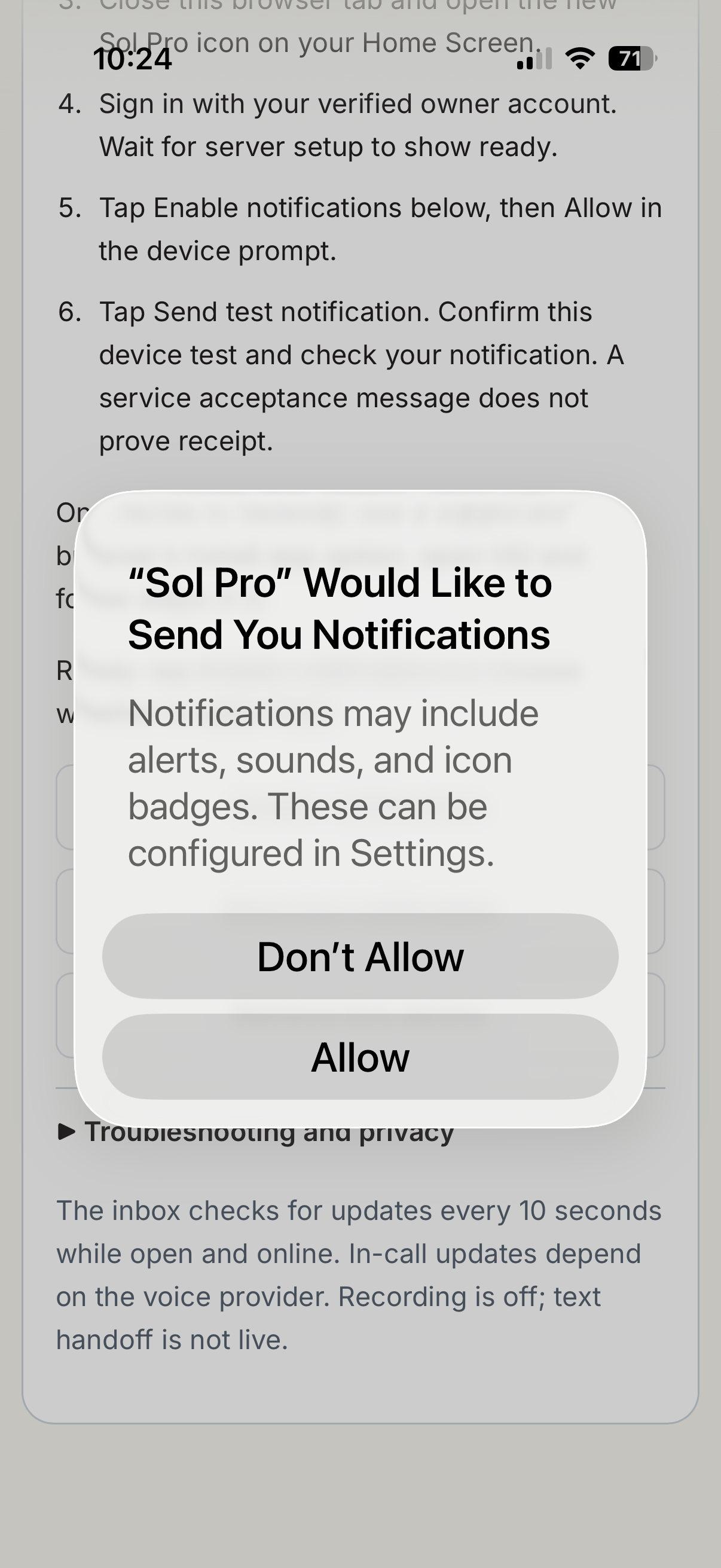
Real iPhone screenshot · October 9, 2026 · arrow added as an overlay -
Send one test when you are ready
Back in Sōl Pro Settings, tap Send test notification, then confirm OK to send one generic test to this device. Cancel sends nothing. This guide itself never sends a test.
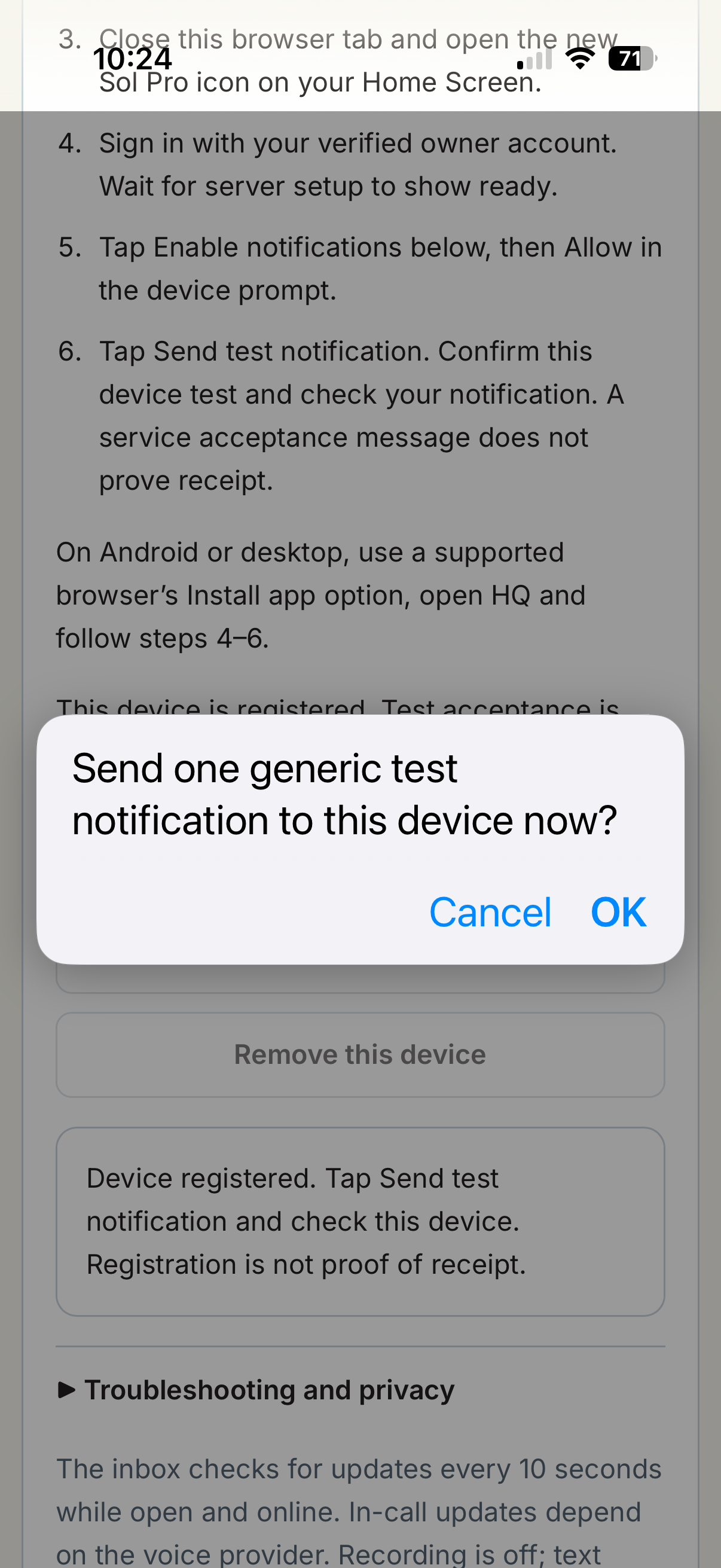
Real iPhone screenshot · October 9, 2026 · arrow added as an overlay -
Check that you actually received it
Look for a Sol Pro notification on this iPhone. A message saying the push service accepted the test does not prove delivery. Tap your received notification and sign in if asked to open your inbox. This historical screenshot shows a received banner; it does not prove setup or delivery on your phone today.
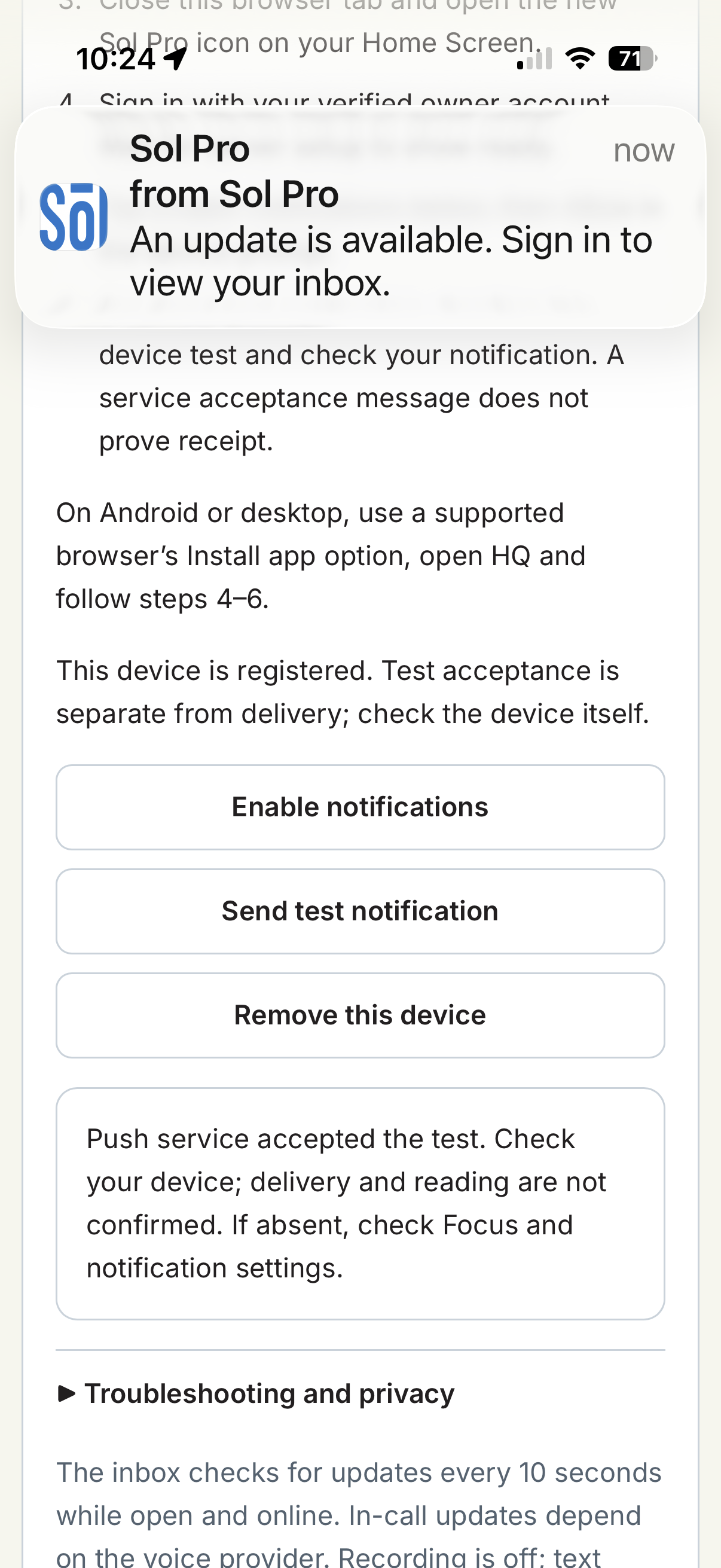
Real iPhone screenshot · October 9, 2026 · arrow added as an overlay
If your screen looks different
Permission was denied, or the app is missing from Settings
The website cannot override a denial or force the permission prompt to reappear. Open iPhone Settings → Notifications → Sol Pro (or the installed name you chose) and turn on Allow Notifications, if listed. Reopen the installed app and use Enable notifications to register this device.
If it is not listed, confirm you opened the Home Screen icon, not Safari, and check your iOS version. On a managed device, restrictions may prevent installation or notifications. Ask your device administrator if relevant. You can keep reading your inbox online without notifications.
No test arrived, or setup is pending
Check the internet connection, Focus / Do Not Disturb, notification settings and Notification Center. Allowing permission alone does not prove the device registered. Read the status in Sōl Pro Settings. “Server setup pending” needs the pilot administrator; repeating permission taps cannot activate it. Service acceptance can still result in delayed or missing delivery.
I already installed it, but see the old icon
iPhone may keep the icon captured at installation. Refreshing the website may not replace it. First make sure you know your sign-in. In the old app’s Settings, use Remove this device if registered, then remove the old Home Screen app and add it again from the dashboard. You may need to sign in and explicitly enable notifications again. Removing the app does not delete your account or server records. Reinstallation is not proof that a permission problem is resolved.
Different website addresses or an in-app browser
The main domain and Firebase domain are separate website origins: their sign-in sessions, installed apps and notification registrations can differ. The short link solws.co/tj currently opens the Firebase dashboard. Use the same dashboard address throughout installation and notification setup. Avoid making duplicate installed copies on different domains.
Android, desktop, iPad or offline
On Android or desktop, use a supported browser’s Install app or Add to Home screen option, then open the installed app and follow the sign-in and notification steps. On iPad, Safari’s controls may sit at the top. Notifications require a supported browser; iPhone/iPad require iOS/iPadOS 16.4 or later and a Home Screen web app. Internet is required for sign-in and records. Private records are not cached for offline use.